If you are unable to connect your Android phone to your computer via USB cable whether for file transfer or other tasks and encounter an error, this issue can be resolved using the MTP USB driver. Windows includes native support for MTP via Microsoft’s own class driver, which uses the setup information file WpdMtp.inf. You can install it in two ways: either by manually updating it through Device Manager or by downloading and installing the setup file.
How to update the MTP driver
The method below will guide you on how to update the MTP driver on your computer.
Step 1: Connect Your Phone to the Computer
First, connect your Android phone to the computer using a good USB data cable. Do not leave your phone in Charging Mode only. Open the USB notification on your phone and select File Transfer or MTP.
If your phone still does not show up on the computer, move to the next step.
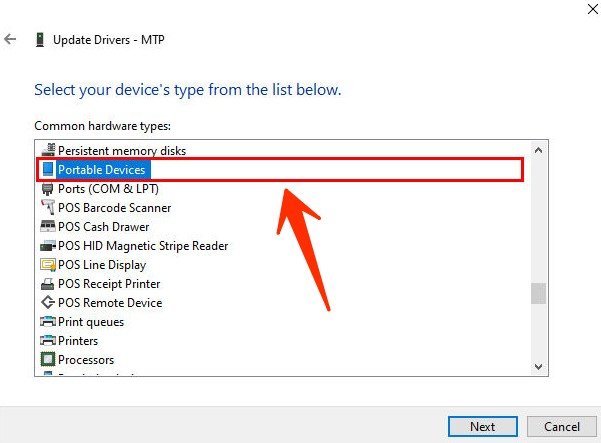
Step 2: Open Device Manager
On your Windows computer, right-click the Start Menu and open Device Manager.
Now, look for your MTP device in these sections:
- Portable Devices
- Other Devices
- Universal Serial Bus controllers
Sometimes, you may see a yellow warning icon next to the device that has a problem.
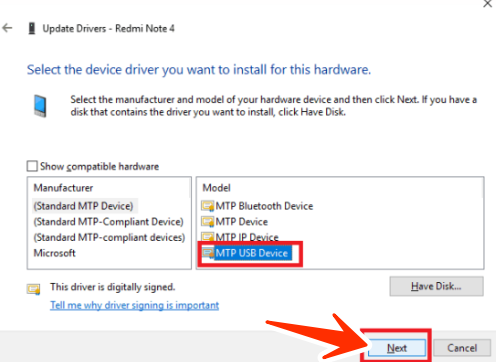
Step 3: Select Update Driver for MTP USB Device
Now, right-click MTP USB Device or the device related to your phone.
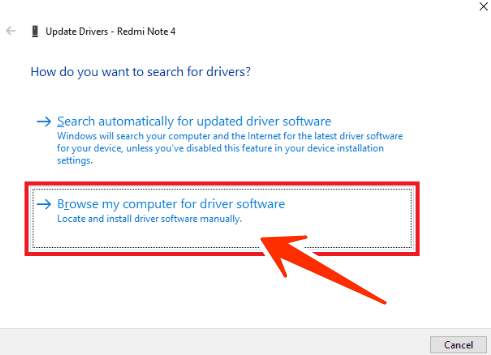
Then click:
- Update driver → Browse my computer for drivers
- This option lets you manually select a driver on your Windows computer.
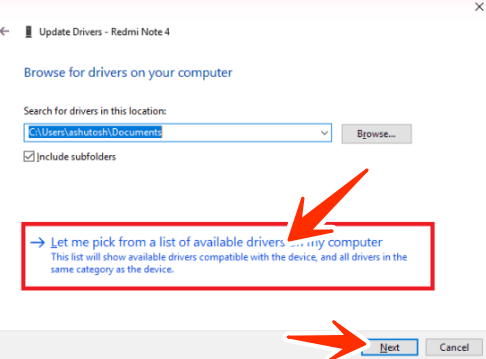
Step 4: Select the Driver Manually
On the next screen, select:
- Let me pick from a list of available drivers on my computer
- Windows will now show you a list of drivers available on your computer.
- If you see MTP USB Device in the list, select it and click Next.
- Windows will then try to set up the available MTP driver for your phone.
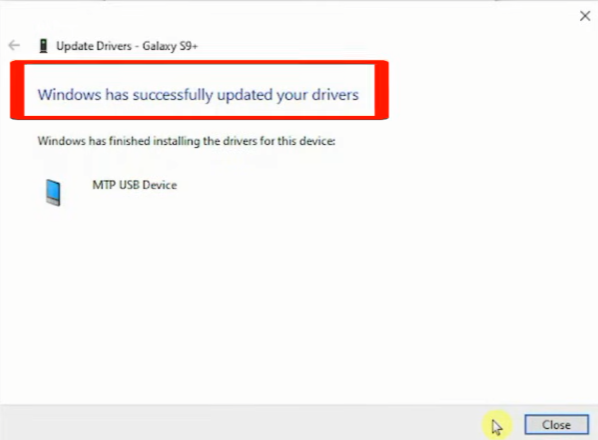
Step 5: Check If the MTP USB Device Is Installed
Once the installation is complete, the warning icon next to the MTP device in Device Manager should disappear.
Now, unplug the USB cable and connect your phone again.
Select File Transfer mode on your phone and open This PC on your computer. If everything is working properly, you should see your phone’s Internal Storage there.